(1).png)
Introduction
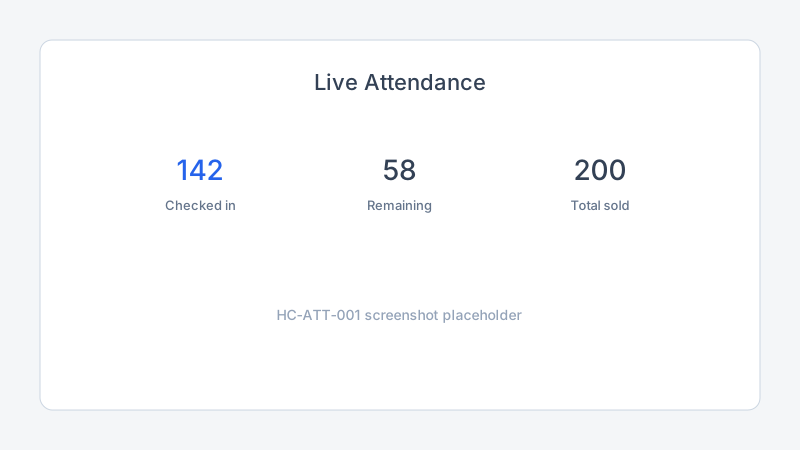
During an event, Sub-Admins monitor live attendance from the attendance dashboard in the Sub-Admin workspace. Scans and manual check-ins from door agents update counts in near real time so you know how many guests have arrived and who still has not checked in.
Objectives
After reading this article, you will be able to:
- Open the live attendance dashboard for your event
- Read check-in totals and attendee status
- Respond to door issues while the event is in progress
Prerequisites
- Invite check-in agents before doors open
- Agents should be scanning tickets at the door
Video tutorial
YouTube embed placeholder — replace with a published video ID in Stage 5.
Steps
Step 1: Open the attendance dashboard
- Sign in and open your Sub-Admin workspace.
- Select the active event.
- Navigate to Attendance, Check-in, or Live dashboard.
Step 2: Read live check-in metrics
The dashboard typically shows:
| Metric | What it means |
|---|---|
| Checked in | Guests admitted via QR scan or manual check-in |
| Not checked in | Valid tickets not yet scanned |
| Total sold | Tickets issued for the event |
| Recent activity | Latest scans and manual check-ins |
Counts update as agents scan tickets at the door.
Step 3: Review attendee status
- Open the attendee list or status view.
- Filter by Checked in, Not checked in, or All.
- Search for a guest by name or email when the door reports an issue.
Use this view when an agent reports attendee not found or needs confirmation before manual admission.
Step 4: Coordinate with door staff
- Share peak arrival expectations with check-in agents before doors open.
- Watch the dashboard during the first 30 minutes to catch scan errors early.
- If counts stall, verify agents are in the Check-in Agent workspace and see QR scan failures.
Troubleshooting
| Problem | Likely cause | Solution |
|---|---|---|
| Count not updating | Agent offline or wrong event | Confirm agent event selection; refresh dashboard |
| Checked-in lower than expected | Late arrivals | Normal during early doors; recheck at peak |
| Attendee shows not checked in but was admitted | Manual check-in pending sync | Refresh; verify manual check-in completed |
Frequently Asked Questions
How often does live attendance update?
Counts update shortly after each successful scan or manual check-in. Refresh if you need the latest totals.
Can Organization Admins view the dashboard?
Yes. Organization Admins with event access can open the same attendance views as Sub-Admins.
Does the dashboard replace post-event reports?
No. Use review attendance after an event for final logs and exports after doors close.
Related articles
- Scan Tickets at the Door
- Review Attendance After an Event
- Send Email Campaigns for post-event follow-up
Next steps
After the event, review attendance and export check-in history.
Release notes
_No release note links yet._