(1).png)
Introduction
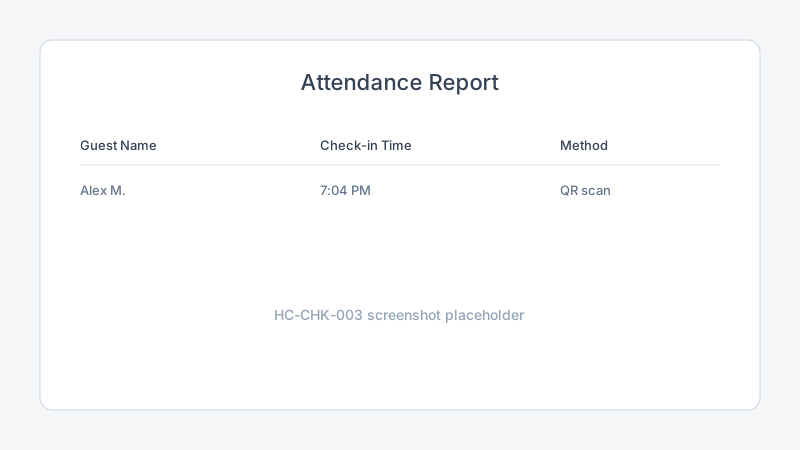
After doors close, Sub-Admins review the attendance report to see who checked in, compare totals to tickets sold, and prepare post-event follow-up. The report combines QR scans and manual check-ins from event day into a single check-in log.
Objectives
After reading this article, you will be able to:
- Open the post-event attendance report
- Interpret check-in totals and individual attendee status
- Use attendance data for thank-you messages and planning
Prerequisites
- View live attendance during the event
- Scan tickets or manual check-ins completed at the door
Steps
Step 1: Open the attendance report
- Open your Sub-Admin workspace.
- Select the completed event.
- Navigate to Attendance, Reports, or Post-event.
Step 2: Review check-in totals
Compare these figures:
| Field | Use |
|---|---|
| Tickets sold | Registration or sales total |
| Checked in | Guests who arrived |
| No-show | Sold tickets not checked in |
Discrepancies may indicate late walk-ins handled manually or tickets that were refunded after check-in.
Step 3: Browse the check-in log
- Open the check-in log or attendee list.
- Sort by check-in time to see arrival patterns.
- Note entries marked Manual versus QR scan for audit purposes.
Step 4: Prepare post-event follow-up
- Export or copy attendee data if your workflow requires it.
- Send a thank-you email campaign to checked-in guests.
- Share summary counts with your Organization Admin for planning the next event.
Troubleshooting
| Problem | Likely cause | Solution |
|---|---|---|
| Report empty | No check-ins recorded | Confirm agents used correct event; check live dashboard replay |
| Count lower than expected | No-shows or scan errors | Cross-check manual check-ins in the log |
| Duplicate names | Same person, multiple tickets | Expected for group purchases; verify ticket IDs |
Frequently Asked Questions
Can I see who did not attend?
Yes. Compare checked in to tickets sold or filter Not checked in in the attendee list.
Does manual check-in appear in the report?
Yes. Manual check-ins are logged with the same attendee status as QR scans.
When is the report final?
The log is available after the event ends. Totals match the final state of the live attendance dashboard.
Related articles
Next steps
Attendance data feeds into Financial Operations — start with understanding the three Stripe flows, then connect Stripe and view earnings.
Release notes
_No release note links yet._