(1).png)
Introduction
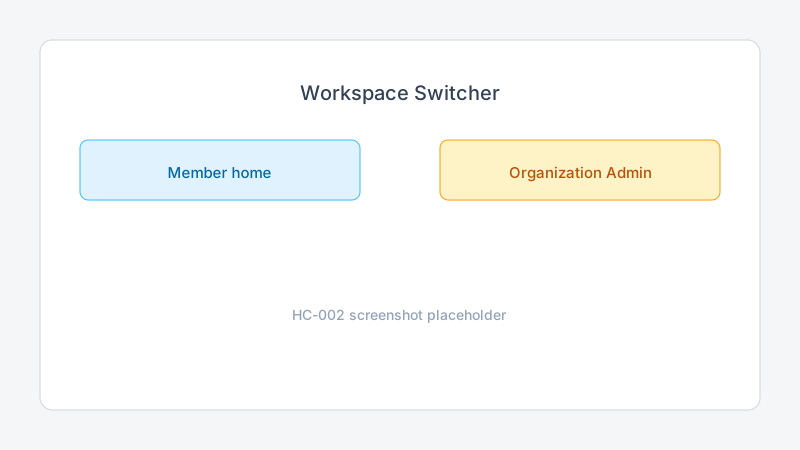
Many Trepy users hold more than one role — for example, Member on their personal account and Organization Admin or Sub-Admin for an organization. Trepy keeps each role in a separate workspace. This guide shows how to switch workspaces so you land in the right dashboard.
Objectives
After reading this article, you will be able to:
- Find the workspace switcher in Trepy
- Move between your Member home and admin workspaces
- Confirm which role you are using before changing organization settings
Prerequisites
Video tutorial
YouTube embed placeholder — replace with a published video ID in Stage 5.
Steps
Step 1: Open the workspace switcher
- Sign in at App.Trepy.com.
- Look at the top navigation for your current workspace name or role label.
- Click the workspace name or Switch workspace to open the picker.
Step 2: Choose Member or admin workspace
The picker lists every workspace you can access.
| Workspace | Who uses it | Typical tasks |
|---|---|---|
| Member home | Individual users | Buy tickets, follow organizations, view My Tix |
| Organization Admin | Organization admins | Billing, Stripe Connect, org-wide settings |
| Sub-Admin | Sub-Admins (program managers) | Events, posts, and communications for a sub-unit |
| Check-in Agent | Check-in agents | Scan tickets at the door |
- Select the workspace you need.
- Wait for Trepy to load the correct dashboard.
Step 3: Confirm you are in the right place
Check the page title or sidebar labels. Organization Admin workspaces show organization-level navigation such as Payments, Billing, and Communications. Member home shows your feed and tickets.
If the workspace you expect is missing, see Troubleshooting role and workspace access.
Best practices
Tips
Common mistakes
Troubleshooting
| Problem | Likely cause | Solution |
|---|---|---|
| Admin workspace not listed | Invite not accepted or wrong account | Confirm you are signed in with the invited email |
| Lands on Member home after login | Default workspace is Member | Open the workspace switcher and select your admin role |
| Cannot find Stripe settings | Wrong workspace selected | Switch to Organization Admin workspace |
Frequently Asked Questions
Why does Trepy separate Member and admin workspaces?
Separating workspaces prevents accidental changes to organization settings while you are browsing tickets or your feed as a Member.
Can I have both Member and Organization Admin roles?
Yes. Many organizers also hold a Member account for personal ticket purchases.
Do Check-in Agents use the same switcher?
Yes. Check-in agents select their assigned event workspace from the same picker.
Related articles
- How to Verify Your Email Address
- Organization Admin vs Sub-Admin Roles
- Troubleshooting Role and Workspace Access
Next steps
Learn how Organization Admin and Sub-Admin roles differ before managing events or communications.
Release notes
_No release note links yet._