(1).png)
Introduction
If you cannot find your admin dashboard, land on the wrong workspace after login, or see permission denied when opening organization settings, the issue is usually email verification, workspace selection, or role assignment — not a broken account. This guide walks through the most common fixes.
Objectives
After reading this article, you will be able to:
- Determine why an admin workspace is missing from the picker
- Fix landing on Member home when you need an admin workspace
- Decide whether to verify email, accept an invite, or contact your Organization Admin
Prerequisites
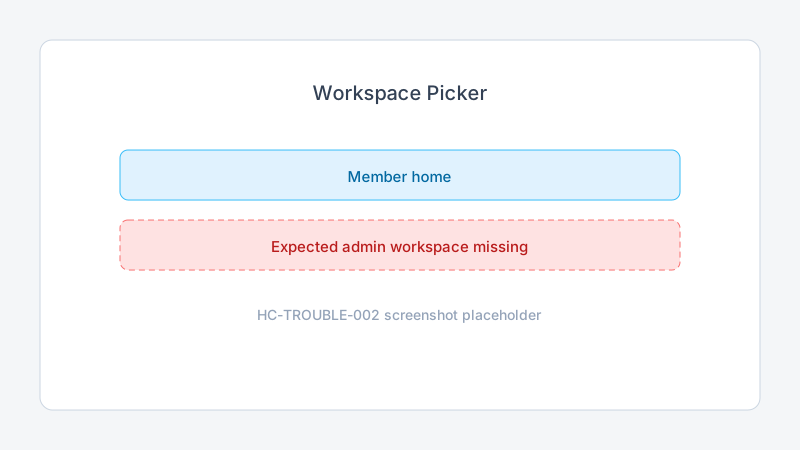
Quick diagnosis
| Symptom | Most likely cause | First fix |
|---|---|---|
| Cannot access admin at all | Email not verified | Verify your email |
| Admin workspace not in picker | Invite not accepted or wrong Trepy account | Accept invite with the invited email |
| Wrong dashboard after login | Default workspace is Member home | Use the workspace switcher |
| Permission denied on Payments | Signed in as Sub-Admin | Switch to Organization Admin workspace |
| Stripe or billing missing | Sub-Admin role selected | Only Organization Admins manage Stripe and Trepy billing |
Step-by-step fixes
Fix 1: Confirm email verification
Trepy blocks admin workspaces until your email is verified.
- Sign in at App.Trepy.com.
- If you see Verify email, complete email verification.
- Sign out and sign back in after verifying.
Fix 2: Accept your organization invite
If you were invited as Organization Admin, Sub-Admin, or Check-in Agent:
- Open the invite email on the same address you use for Trepy.
- Click the invite link and accept the invitation.
- Return to Trepy and open the workspace switcher.
Fix 3: Switch to the correct workspace
After verification and invite acceptance:
- Click the workspace name in the header.
- Select Organization Admin, Sub-Admin, or Check-in Agent as needed.
- Confirm the sidebar matches the task — Payments appears only for Organization Admins.
Fix 4: Confirm you are using the right Trepy account
If you manage multiple email addresses:
- Sign out of Trepy.
- Sign in with the email that received the organization invite.
- Open the workspace switcher again.
Troubleshooting
| Problem | Likely cause | Solution |
|---|---|---|
| Cannot access admin workspace | Unverified email | Complete verification, then retry |
| Organization Admin option missing | Invite pending on another account | Sign in with invited email and accept invite |
| Opens Member home every time | Last-used workspace was Member | Manually switch; bookmark admin URL after switching |
| Sub-Admin sees event but cannot edit | Event in another sub-unit | Ask Organization Admin to confirm sub-unit assignment |
| Check-in Agent workspace empty | No events assigned yet | Ask Sub-Admin to assign you to an event |
Frequently Asked Questions
I am Organization Admin but cannot see Stripe. Why?
You are likely in Member home or a Sub-Admin workspace. Switch to Organization Admin using the workspace picker.
Can support grant me Organization Admin access?
Support cannot override organization role assignments. Your Organization Admin must send an invite.
Does verifying email fix all access problems?
No. Verification unlocks sign-in, but admin workspaces still require an accepted invite for the correct role.
Related articles
- How to Switch Between Member and Admin Workspaces
- Organization Admin vs Sub-Admin Roles
- How to Verify Your Email Address
Next steps
Once access works, review how to switch workspaces and confirm your role before managing events or payments.
Release notes
_No release note links yet._